
Adding users for the first time, new starters or an employee leaving your company? No worries! Here is how you can very easily add or remove a user to your Organisation.
NB: You can access your Organisation's page from any workspace by clicking on your Organisation's name at the top left-hand corner of your screen. Please note, deleting a user from a Workspace or your Organisation doesn't delete their work. Other users will still be able to view anything this user created unless their content is deleted.
NB: This guide is not relevant to Organisations with SSO configured. If you have SSO configured please speak to your IT admin or contact us at Labstep via the in app chat.
Adding a user:
Click on your organisation's name in the top left-hand corner
Click on 'Users'
Click on 'Add User'
Enter the user's first name, last name and email address.
Select ‘Add’
You will see the user appear in your organisation. They will be default be given the ‘Member’ organisation role.
You can change the organisation role to ‘Admin’ or ‘Guest’.
Your new user will be sent an email invite to log into the organisation.
Disabling a user:
Click on your organisation's name in the top left-hand corner
Click on 'Users'
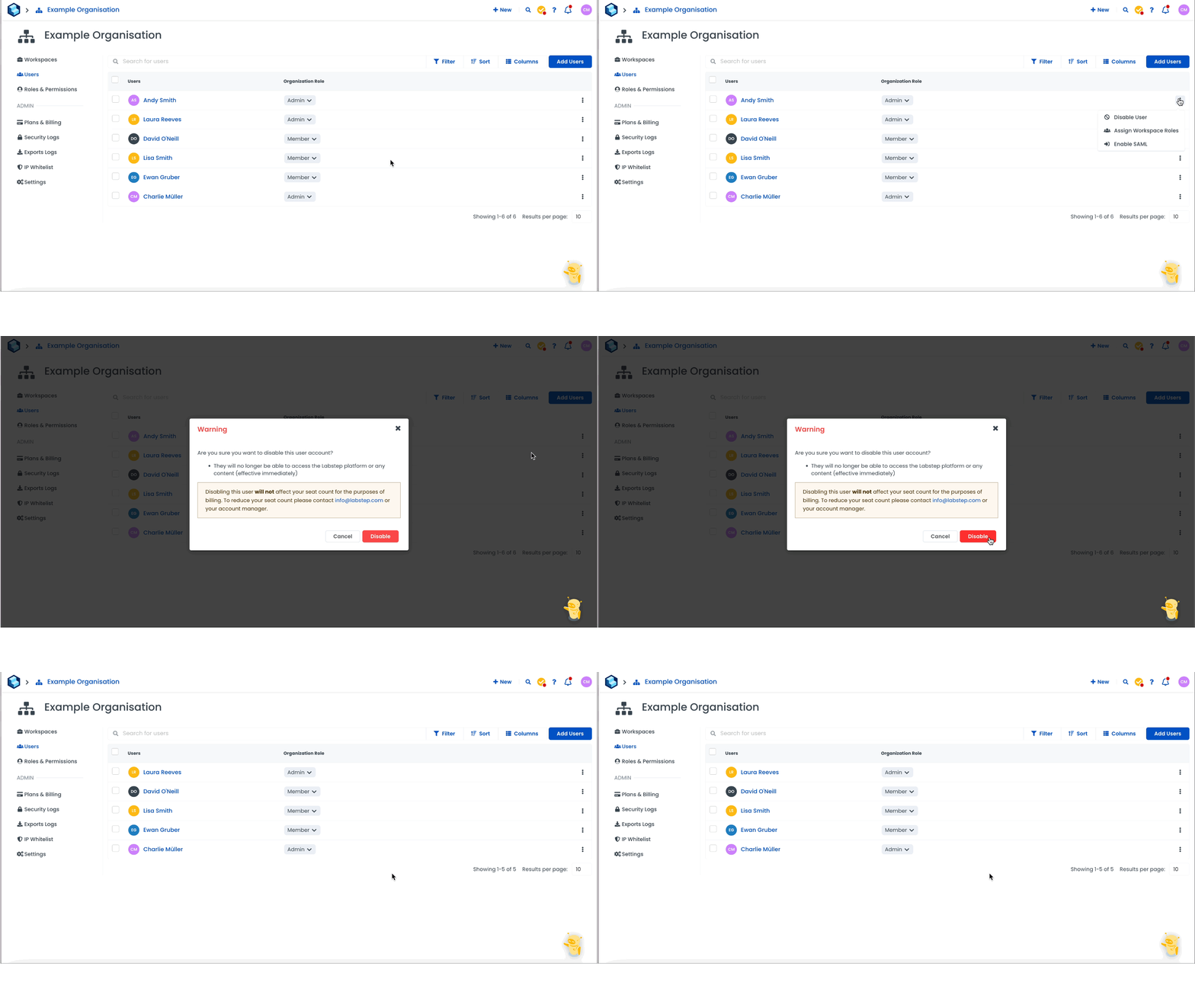
Click on the horizontal ellipsis next to a user's name and role
Click on 'Disable user'
They will be removed from your organisation immediately!
Labstep team tip: Although a user will be immediately removed from an organisation, this will only be reflected in the following billing period. If you have any concerns about this, please don't hesitate to get in touch with us here.
Restoring a user:
Click on your organisation's name in the top left-hand corner
Click on 'Users'
Select ‘Filter’ and then ‘Deleted’
Click on the horizontal ellipsis next to a user's name and role
Click on 'Restore user'
They will be reinstated in your organisation immediately!
Still need help?
Contact us here or start a conversation with a member of our team using our in-app chat.