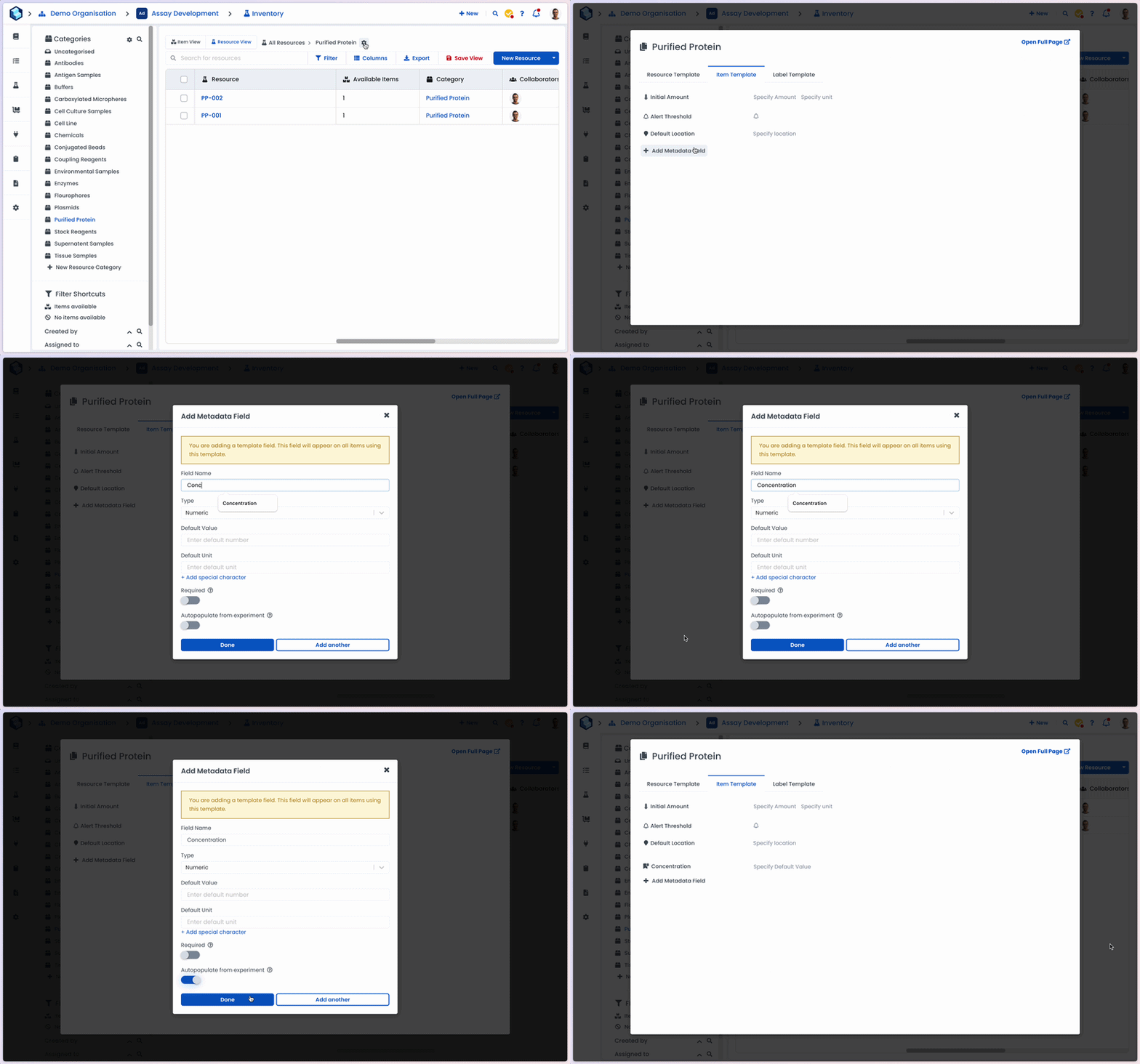
The Auto-populate from Experiment feature allows resource and item metadata fields to be automatically populated from experiment data fields.
There are a couple of core use cases for this:
When creating new resources or resource items: Capturing synthesis or process parameters (e.g., Yield, Purity) from the resource/resource item’s creation.
When performing tests or measurements on an item: Appending new characterisation data of the item (e.g., Stability, Concentration).
As part of an experimental process often a new resource or item will be created. For example, you may have a protocol for creating a new formulation by combining different ingredients in different amounts.
Often there will be experimental parameters such as the concentrations used of the different ingredients or the reaction time / temperature that you wish to save as metadata fields on the new resource / item so that you can easily compare them within the Inventory module.
When defining the template for your resource / items, if you enable the Auto-populate from Experiments option, if the resource / item is created within an experiment then that metadata field will automatically be populated with the value of any data field on the experiment with the same name.
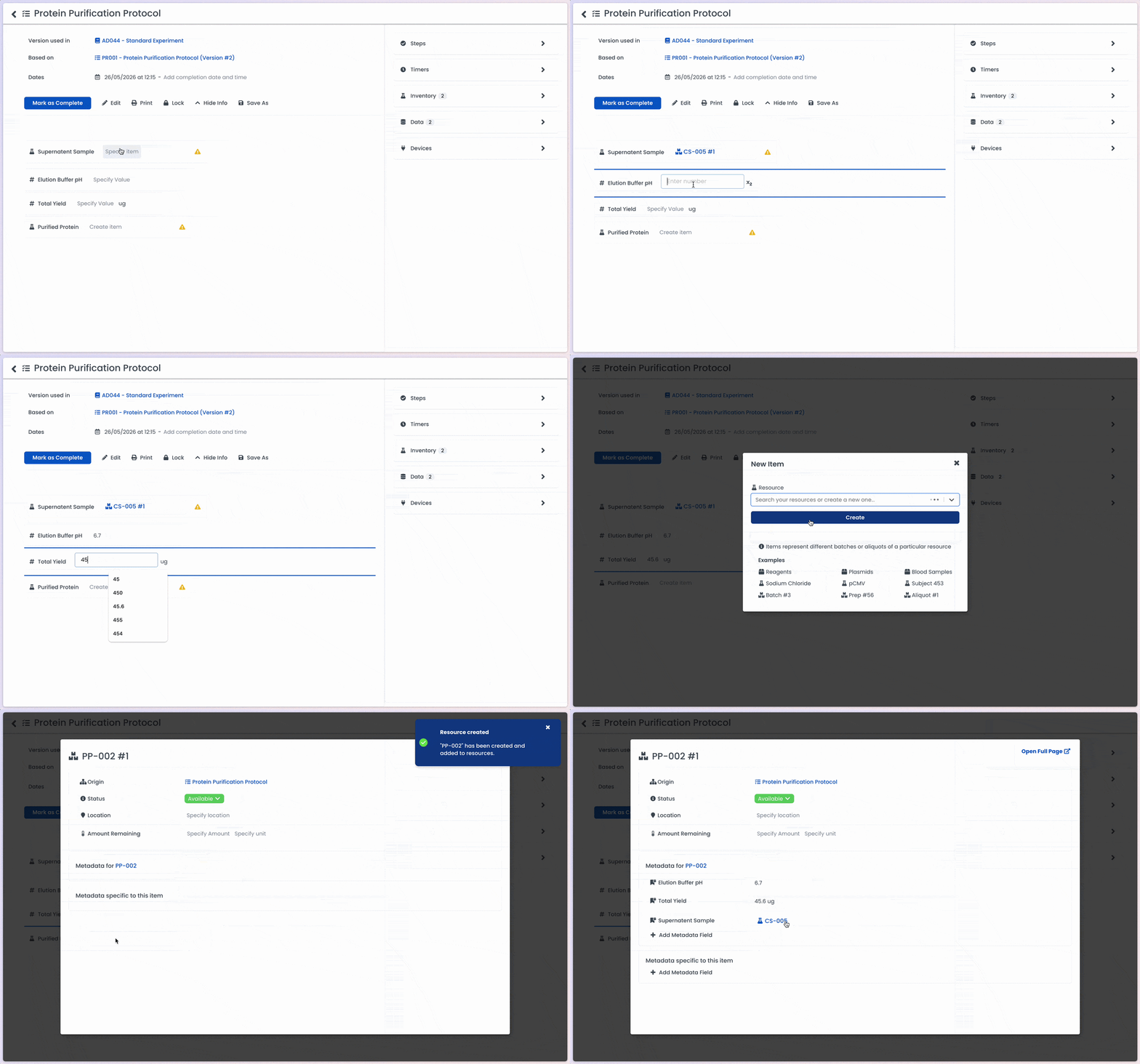
For example, imagine a protocol for Protein Purification. You are creating a new "Purified Batch" by processing a "Cell Supernatant." You want to track the Elution Buffer pH and Total Yield for every batch created.
The Setup: In your Resource Template for the "Purified Protein" category, add metadata fields for "Elution pH" and "Total Yield."
The Trigger: Enable the Auto-populate from Experiment option for these fields.
The Result: When you run your purification protocol, Labstep looks for Data Fields with the exact same names ("Elution pH" and "Total Yield"). The values you enter during the experiment will automatically flow into the metadata of the newly created inventory item.
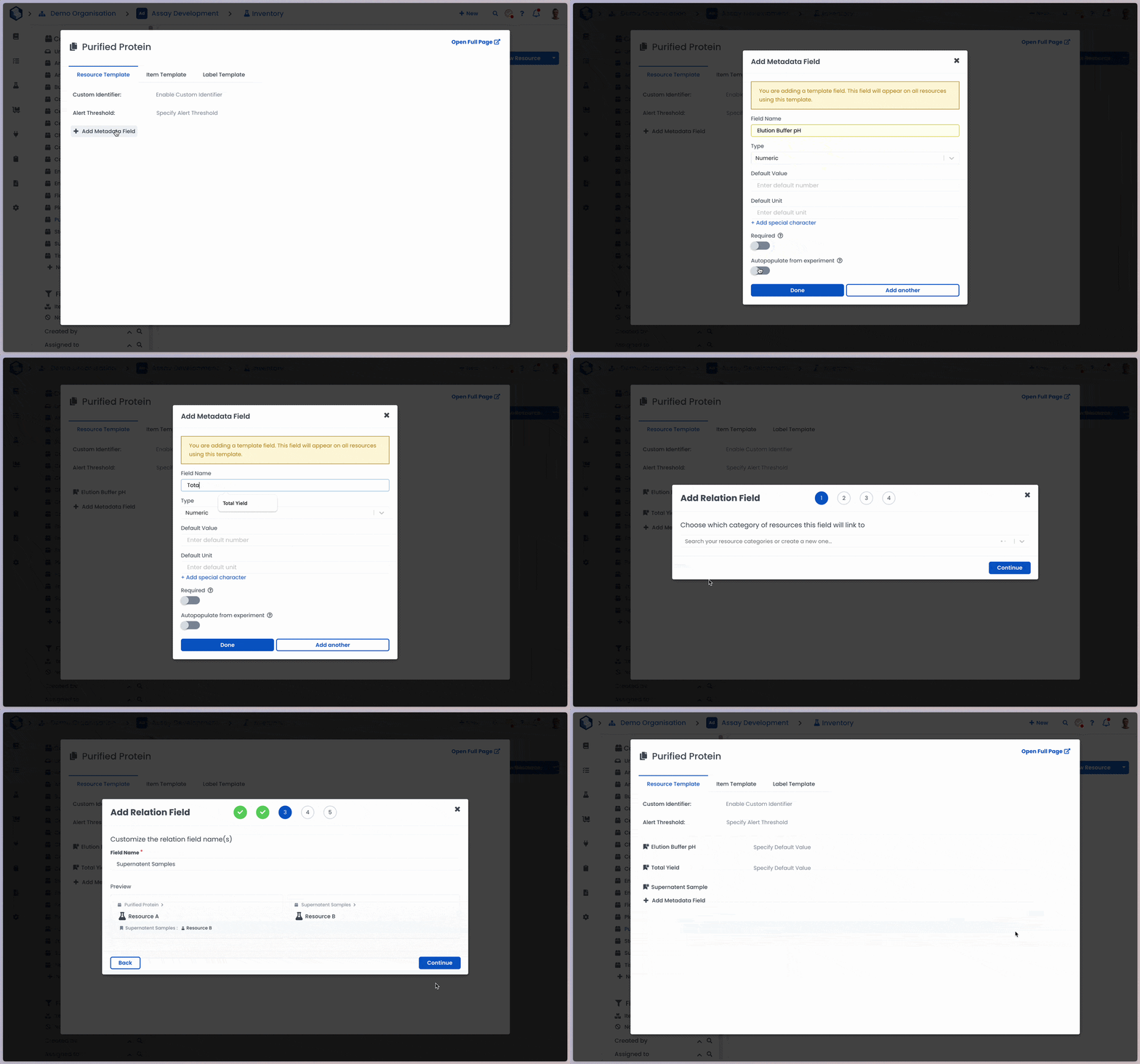
You can also automate links between resources. If your purified protein was derived from a specific Expression Vector, you can create a metadata field of the type Relation named "Source Vector." By enabling Auto-populate, Labstep will automatically link the specific Vector used in the protocol to the new Protein item created.
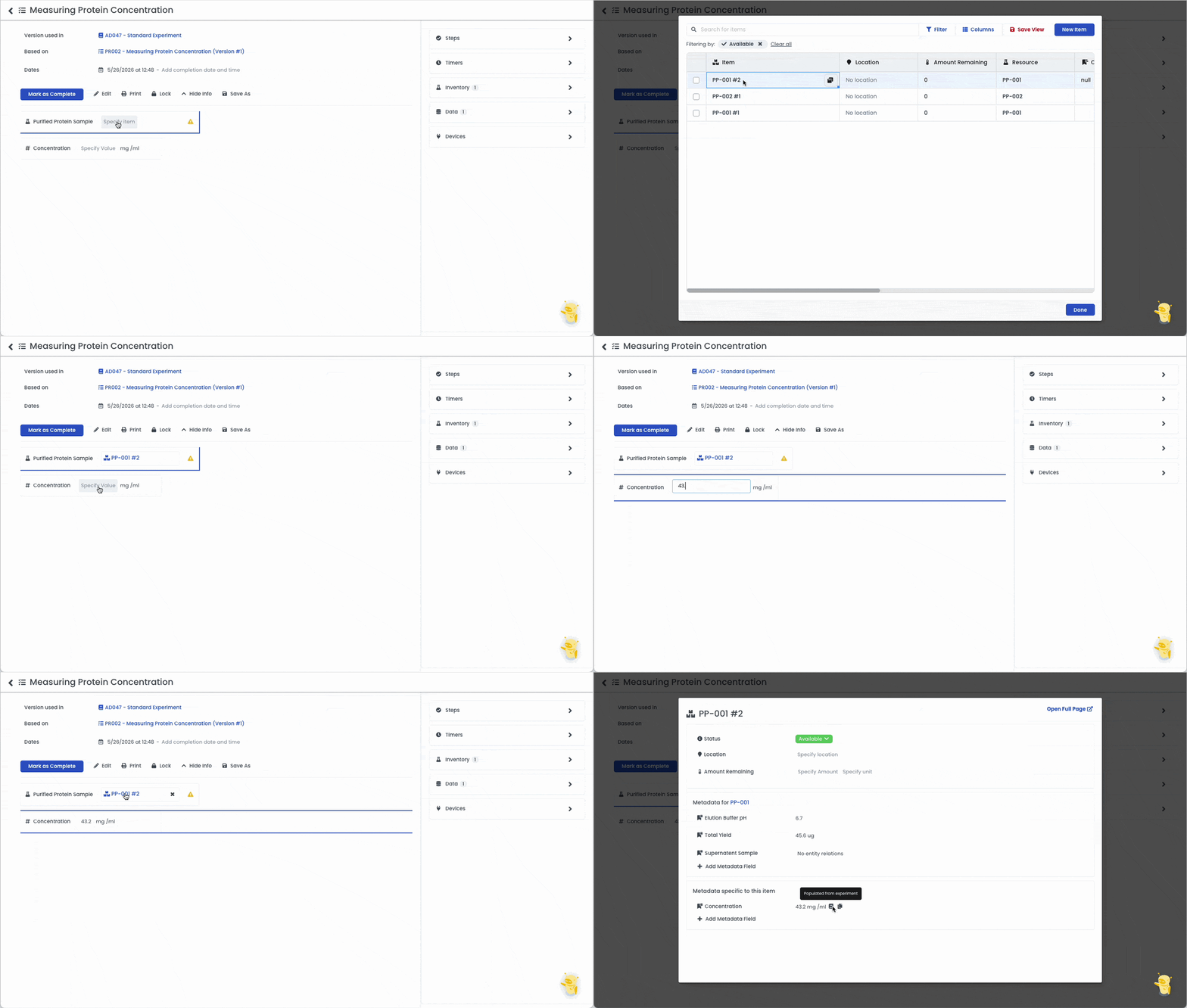
You can also use this feature to update items that already exist in your inventory with new analytical results.
For example, post-purification analysis. Suppose you have a separate protocol for measuring the concentration of the sample. The protocol has an Input field for the "Protein Sample" and an Output data field for "Concentration"
The Setup: In this case, you would add the "Concentration" metadata field to the Item Template rather than the Resource Template. This is because while the Resource (the protein type) stays the same, the Item (the specific batch or aliquot) will have a unique concentration value.
The Trigger: As when auto-populating metadata for new items or resources, enable the Auto-populate from Experiment option for this field.
The Result: When you record the "Concentration" in your analysis experiment (using the same data field name as the metadata on the item template), the value is mapped to that specific aliquot in your inventory.
Note: Currently, an auto-populated metadata field will display the most recent value recorded. (Support for displaying historical averages is planned for future updates).
Why use this? By leveraging Auto-populate, you can compare Concentration against Elution pH or Source Vector directly within the Inventory module. You gain a high-level view of your process optimization without ever having to manually update an inventory record.